Beginning July 29, all GreaterMLS Flexmls users will be required to use multi factor authentication, or MFA, when logging in. Protecting member accounts and the integrity of MLS data is a shared responsibility. As scams and account takeover attempts continue to target the real estate industry, MichRIC is adding another layer of login security for every Flexmls user. Many members already use security codes to access banking, email, and other online services. Flexmls MFA works in a similar way. Members who have already enabled MFA do not need to take any additional action. |
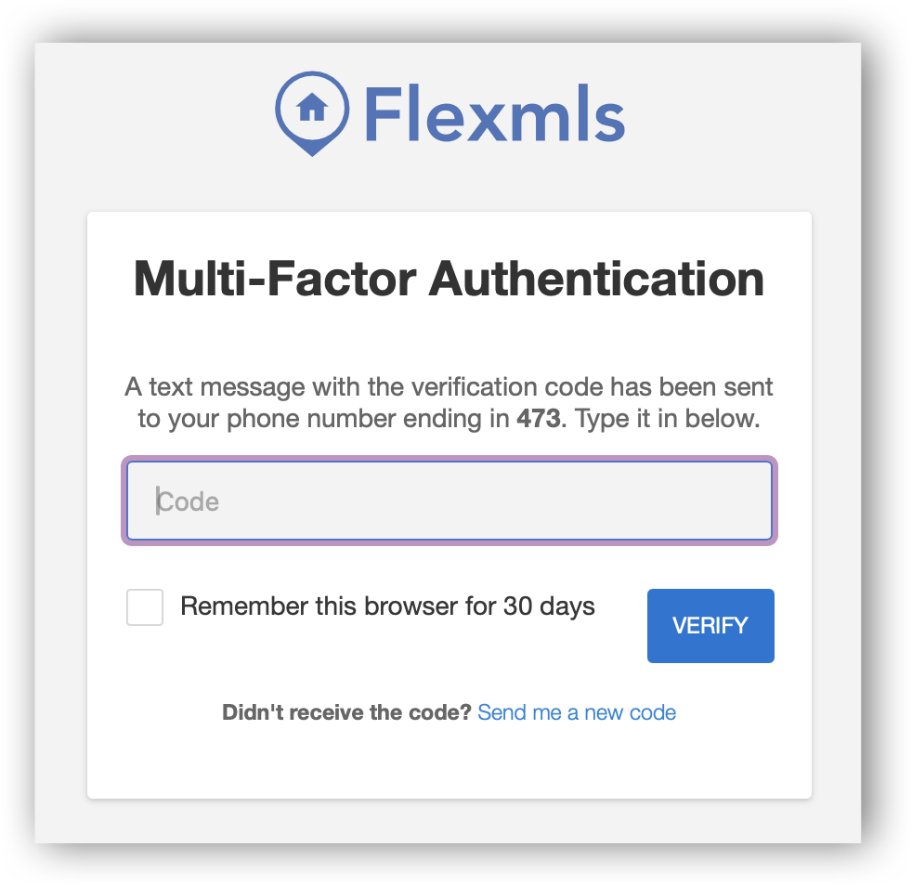 | What Is Multi Factor Authentication? Even if someone obtains your password, they cannot access your account without also completing the second verification step. You can select the option to remember a trusted browser or device for 30 days, so a code is not required every time you log in. |
What Changes on July 29?
At your first Flexmls login on or after Wednesday, July 29, you will enter your password as usual and then be prompted to set up MFA. You will choose your verification method and enter the security code you receive.
Already using MFA? Nothing changes. Your account is ready, and you can continue logging in as you do today.
Enable MFA Before July 29
You do not have to wait until July 29. To enable MFA now:
1. Log in to Flexmls.
2. Select Menu, then My Profile.
3. Select Security.
4. Under Multi Factor Authentication, select Enable.
5. Follow the prompts to choose an authenticator app, text message, or phone call.
For detailed instructions, visit the Flexmls Help page for enabling MFA.
Tips and Tricks
• Authenticator apps are the most secure and recommended option. They generate codes on your device, work without cell service, and avoid text message delivery or filtering issues.
• When prompted, select “Remember this browser for 30 days” on a trusted personal computer or device.
• If you clear your browser cookies, use a private browsing window, or switch browsers, you may be asked for a new code sooner.
• If you use text message or phone call authentication, Flexmls will use the primary phone number in your Flexmls profile. A secondary phone number cannot be used for authentication.
• Verification texts and phone calls come from (701) 205-0681. If a code does not arrive, confirm this number is not in your device’s Blocked Numbers list.
Important for iPhone Users
On iPhones using iOS 26 or later, the Filter Spam setting may be enabled automatically. A Flexmls verification text may be placed in the Spam folder instead of the main inbox.
1. Open the Messages app and tap Filters.
2. Tap Spam.
3. Open the Flexmls verification message.
4. Tap Move to Inbox or Move to Inbox and Report Not Spam.
After moving the message, future verification codes from the same number should be easier to locate.
Frequently Asked Questions
• I already have MFA set up. Do I need to do anything?
No. If MFA is already active on your Flexmls account, nothing will change on July 29.
• Will I need to enter a code every time I log in?
Not on a trusted browser or device when you select the option to remember it for 30 days. You may be prompted sooner if cookies are cleared or you use a different browser or device.
• Is MFA required in the Flexmls Pro app?
Yes. MFA applies to Flexmls logins on desktop and mobile. Members who use Face ID or another biometric login may still need to complete the MFA prompt when required.
• What should I do if I am not receiving a texted code?
Confirm that the primary phone number in your Flexmls profile is correct. Verification texts come from (701) 205-0681, so make sure the number is not blocked. Check the Spam, Blocked, or Unknown Senders folder in your messaging app. On an iPhone using iOS 26 or later, tap Filters, then Spam, open the message, and move it to your inbox. If the problem continues, use an authenticator app or contact your phone carrier or association support.
• Which phone number will Flexmls use for text messages or calls?
Flexmls will use the primary phone number listed in your Flexmls profile. A secondary phone number cannot be selected for MFA. To review the number, select Menu, then My Profile, then Security.
• What if I do not have a smartphone?
You can receive a code by phone call. A basic mobile phone that can receive text messages may also be used.
• Why is MichRIC requiring MFA?
MFA is one of the most effective ways to prevent unauthorized access when a password has been compromised. Requiring it for all users helps protect member accounts, listing data, and the MLS system.